![white_logo.png]](https://help.happyhotel.io/hs-fs/hubfs/white_logo.png?height=32&name=white_logo.png)
How can I configure the rates?
In happyhotel, you configure the yielding rate. All other rates either inherit their prices from the yielding rate or are managed independently in your PMS.
For revenue management, the relevant rates are the ones that are active in your PMS. These rates are marked with the label “rate active in PMS”.
Important: The minimum price, base price, and maximum price are key components of the price calculation.
If you plan to adjust any of these values, please contact the happyhotel Support team first. These values directly influence future price recommendations, so our team needs to retrain the algorithm to ensure that the new settings are taken into account correctly.
The following video shows you how to configure the yielding rate:
1. Open the rate settings
- Open the happyhotel Dashboard.
- Click Settings in the navigation on the left.
- Click Rates at the top of the settings page.
- The Rate groups and Rate plans sections are displayed.
2. Edit the rate configuration
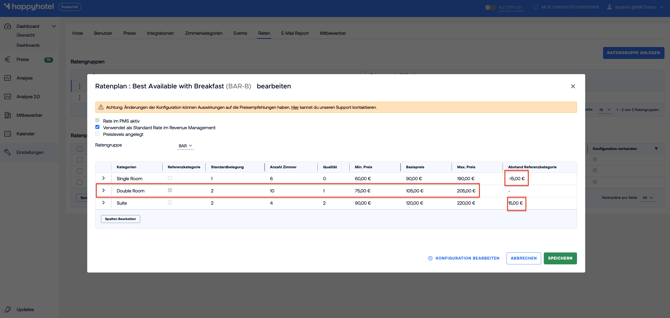
- Select the rate plan marked with a checkmark in the Used for Revenue Management column.
- Click Edit configuration for this rate plan.
- Check which room category is marked as the Reference category.
Important: Always configure the reference category first. You can then adjust the other room categories using their respective offset to the reference category.
3. Configure the reference category
- Enter the following values for the reference category:
- Minimum price
- Base price
- Maximum price
- Check the values you entered before continuing.
The minimum price defines the lowest price that happyhotel can recommend for the reference category. The base price serves as the starting point for a typical day, while the maximum price defines the highest possible price recommendation.
4. Configure the other room categories
For the remaining room categories, use the Difference from reference category field:
- Enter the desired price difference compared to the reference category.
- Use a negative value if the room category should be cheaper, for example -€10.00.
- Use a positive value if the room category should be more expensive, for example €10.00.
- The minimum, base, and maximum prices of the other categories are adjusted based on the reference category and the specified difference.
Important: Configure the other room categories using their offset to the reference category. This means that you do not need to enter the minimum, base, and maximum prices separately for every category.
5. Save the configuration
- Check all values once again.
- Click Save.
- Choose whether the occupancy dependent prices should also be adjusted.
- Review the updated prices for the individual room categories and occupancy levels in the preview.
- Click Yes to apply the adjustment, or select No if you do not want to apply it.
- Open the dropdown next to Save and select Keep current prices.
- Once the configuration has been saved successfully, the message Changes saved! will appear.
Caution: When saving, you will be asked whether you want to keep the current prices or update all prices. Make sure to select Keep current prices. The prices will then be synchronized automatically by the system.
Summary
When configuring your rates, you define the main pricing parameters for your reference category:
- The minimum price defines the lowest price recommendation.
- The base price serves as the starting point for a typical day.
- The maximum price defines the highest price recommendation.
- The prices for the other room categories are calculated based on their offset to the reference category.
- Please contact the happyhotel Support team before adjusting the minimum price, base price, or maximum price. The algorithm needs to be retrained so that the new values are correctly reflected in future price recommendations.
- The reference category is particularly important because it serves as the basis for calculating the prices of all other room categories.