![white_logo.png]](https://help.happyhotel.io/hs-fs/hubfs/white_logo.png?height=32&name=white_logo.png)
Pick-up report
The pick-up report is probably one of the most traditionally confusing reports, as it is usually presented in an extremely complex Excel list, if at all. While this of course ultimately provides a similar insight into the success of the booking channels, it usually takes quite a while to analyse and evaluate the data.
In happyhotel’s analysis tool, the pick-up report is broken down simply and cleanly into bookings and nights and displayed over a self-definable period of time. This means that you are always perfectly informed about how many bookings were made on which day for which day, or how many nights were booked.
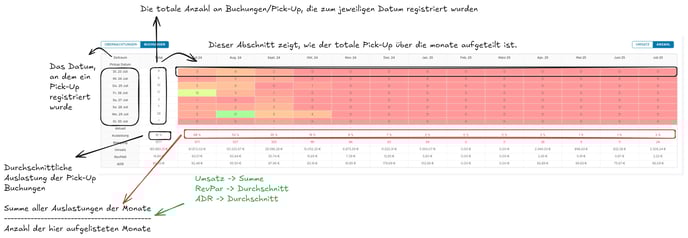
- The last 7 days are always displayed in the left column (pick-up date). The ‘Total’ column shows the number of all bookings made on this date. In the image, for example, we can see that a total of 9 bookings were made on 23 July.
- The month columns show exactly when these bookings were made. Accordingly, 3 out of 9 of these bookings were made for July, 4 for August and 2 for September. You can see the exact day for which the bookings were made by clicking on the number. The daily view then opens and you can see the days for which these bookings were made.
- If you want to return to the normal view from the daily view in the pick-up report, simply click ‘Period’.

- The KPIs listed at the bottom of the pick-up report are either average values or total values. Occupancy, RevPar and ADR are the average of the values listed in the right-hand columns. Revenue and occupancy are the totals in each case. The values of the selected pick-up date always apply here.
- Cancellations are always included in the pick-up report.
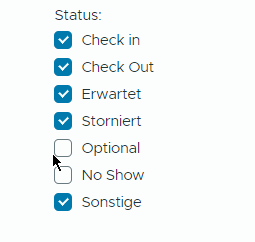
- The pick-up date can be extended or shortened using the filter setting. This date shows the days on which bookings were made.
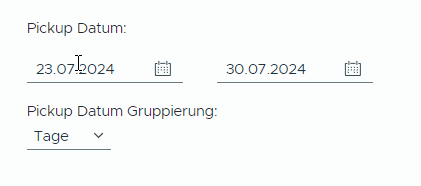
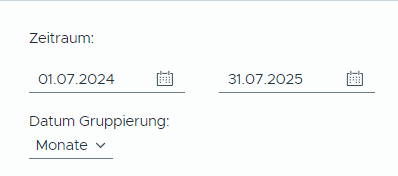
- The period for which the bookings were made can also be set. We are always talking about the monthly columns in the pick-up report, which show the distribution of pick-ups.
- The booking view is displayed by default in the pick-up report. However, if you want to know how many nights/overnight stays these bookings actually include, you can switch to the overnight stay view. The overnight stay shows the volume of a booking. It may be that only 1 booking has been made, but for several nights.
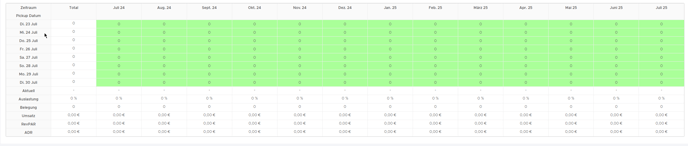
- If only 0 is displayed in the pick-up report and everything is green, this means that the interface is most likely no longer working and we are no longer receiving any data. Another sign of this issue is when no pick-up has been registered for several days. In this case, it is worth contacting support and checking your own interface.
- The pick-up report is also a good analysis to see the hotel's booking ratios. You can see at a glance whether bookings are made for the short, medium or long term. With this data, it is easier to calculate expected pricing, which is already done by the algorithm anyway.
Colours in the pick-up report
Rules for colour assignment:
-
If the current value is equal to or higher than the highest value in the table, the colour tone is set to 110° (green).
-
If the current value is lower than the highest value, the colour tone is calculated according to the following formula:
- Colour tone = (current value * 100) / highest value
Example:
Highest value = 11
Current value = 7
Formula: 7 * 100 / 11 = 63.6° → corresponds to a yellow tone.
The colours in the report therefore run from green (highest value) to yellow (lower values).