
Drag the most important KPIs into the price calendar and get the best price for the day!
Anyone who works with key figures knows how important they are. A price based on gut feeling can sometimes be a hit, but KPIs are essential for long-term and sustainable pricing. It is therefore important to keep an eye on the most important KPIs.
You can also use metrics to better understand how our algorithm works, as these numbers give you a rational justification for the suggested price.
Change the view of the KPIs in the price calendar
The price calendar is structured as follows:
-
Month and year: At the top of the price calendar, you can always see the current month and year.
-
Table: The price calendar is organised in tabular form. On the left, you can see the titles of the lines, while to the right are the corresponding values.
-
Days: The first line shows the days of the month.
-
Pricing strategies: In the line below you will see the pricing strategies that you have defined in the event calendar.
-
Events: You can see all planned events in a separate line.
-
KPIs: Below you will find the most important key performance indicators (KPIs) for your hotel, such as occupancy, revenue or ADR.
-
Competitor data: If you have booked Rate Shopper, the comparison with your competitors is displayed in another line.
-
Room categories: This is followed by the room categories with the prices for each day.
-
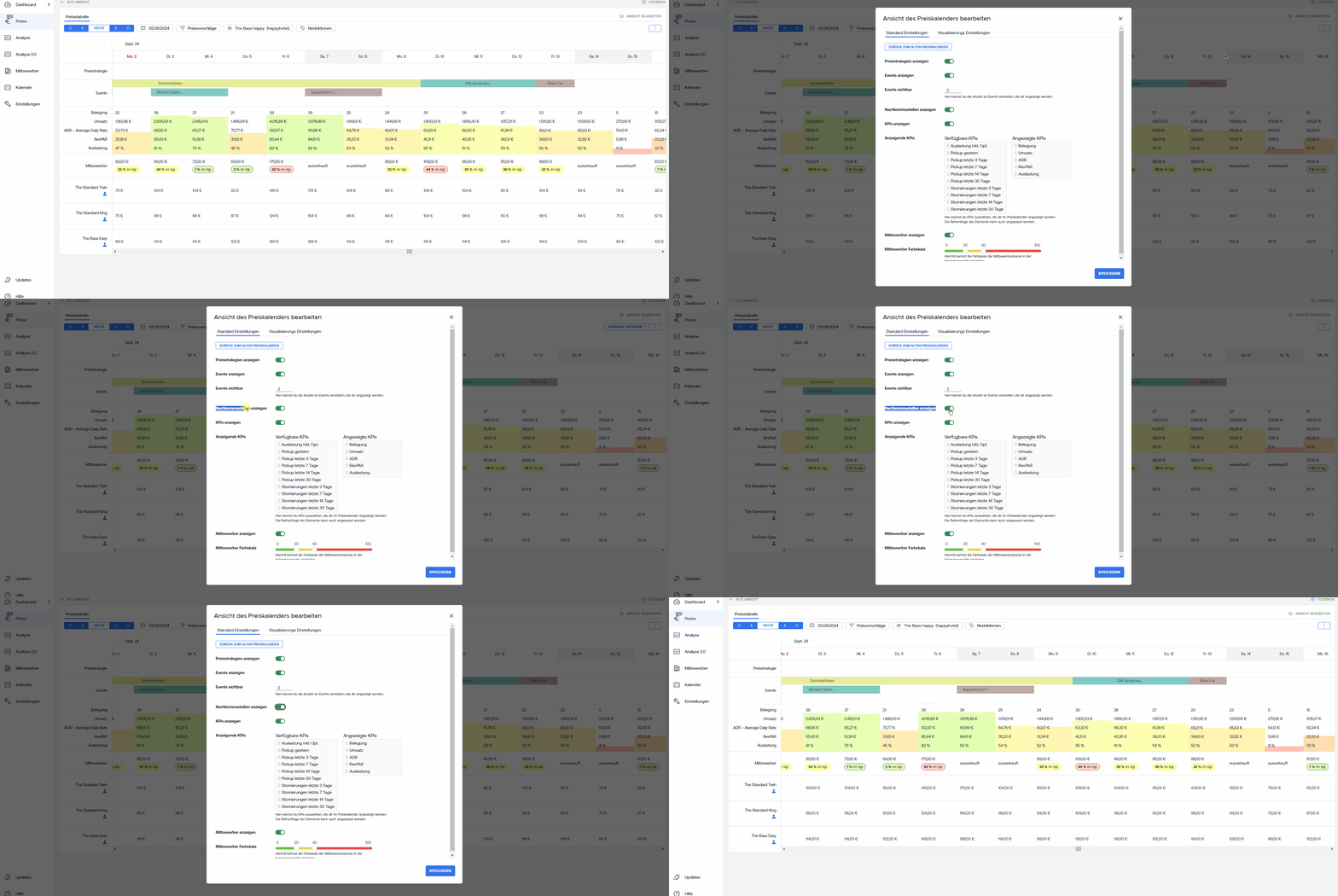
Customise view: You can customise the view of the calendar by adding additional KPIs. To do so, click ‘Edit view’, select the desired KPIs, e.g. the occupancy forecast, and save the changes. The selected KPIs are then displayed directly in the calendar.
With this overview, you can customise the price calendar to suit your needs and view all relevant information at a glance.
🆕 Function in the new price table
1. Show/hide decimal place 🆕
In the price calendar, you can set whether the decimal places of the prices should be displayed or hidden. To do so, simply click ‘Edit view’ in the price calendar and make the setting.
2. Change the display of the new price table 🆕
→Display vertical lines: You can display the vertical line again in the new price table.
→Displaykey figures: The occupancy is now displayed like a load bar per day in the KPI view. The display can also be edited here: Colour change, cell instead of bar and vice versa.
→Price suggestions: The presentation of the price suggestions can also be customised.
3. Further setting of the views in the new price table 🆕
→ In the basic settings under ‘Edit view’, you can specify whether you want to display price strategies or events, how many events should be visible and whether decimal places should be displayed.
→ Under KPI, there are now 2 new key values that can be viewed ⇒ House Count and Out of Order.
→The competitor view can also be hidden. You can also set how the comparison to the median should be coloured. (Green: acceptable in comparison, yellow: worth considering in comparison, red: too expensive in comparison: The colour development must be determined individually.)